Getting Started
Install · settings · joining the server
Black Ops Gunfight runs on Plutonium for T5 (Call of Duty: Black Ops 1). The open source CB Servers Launcher gets you the game for free and Plutonium in one app. You’ll need a free Plutonium account to play.
1. Install
The CB Launcher includes everything you need to start playing for free.
- 1
Get the launcher. Download
cb-launcher.exefrom docs.cbservers.xyz/games/t5. - 2
Run it. If Windows SmartScreen shows “Windows protected your PC”, click More info → Run anyway.
- 3
Open the Library tab and find Black Ops, then click SETUP. Choose Download game and let it finish.
- 4
Log in with your Plutonium account (create one free at forum.plutonium.pw/register).
- 5
Click PLAY → Multiplayer → Server Browser → Gunfight
With Black Ops installed, you can open it with either CB Launcher or directly through Plutonium.
2. Recommended settings
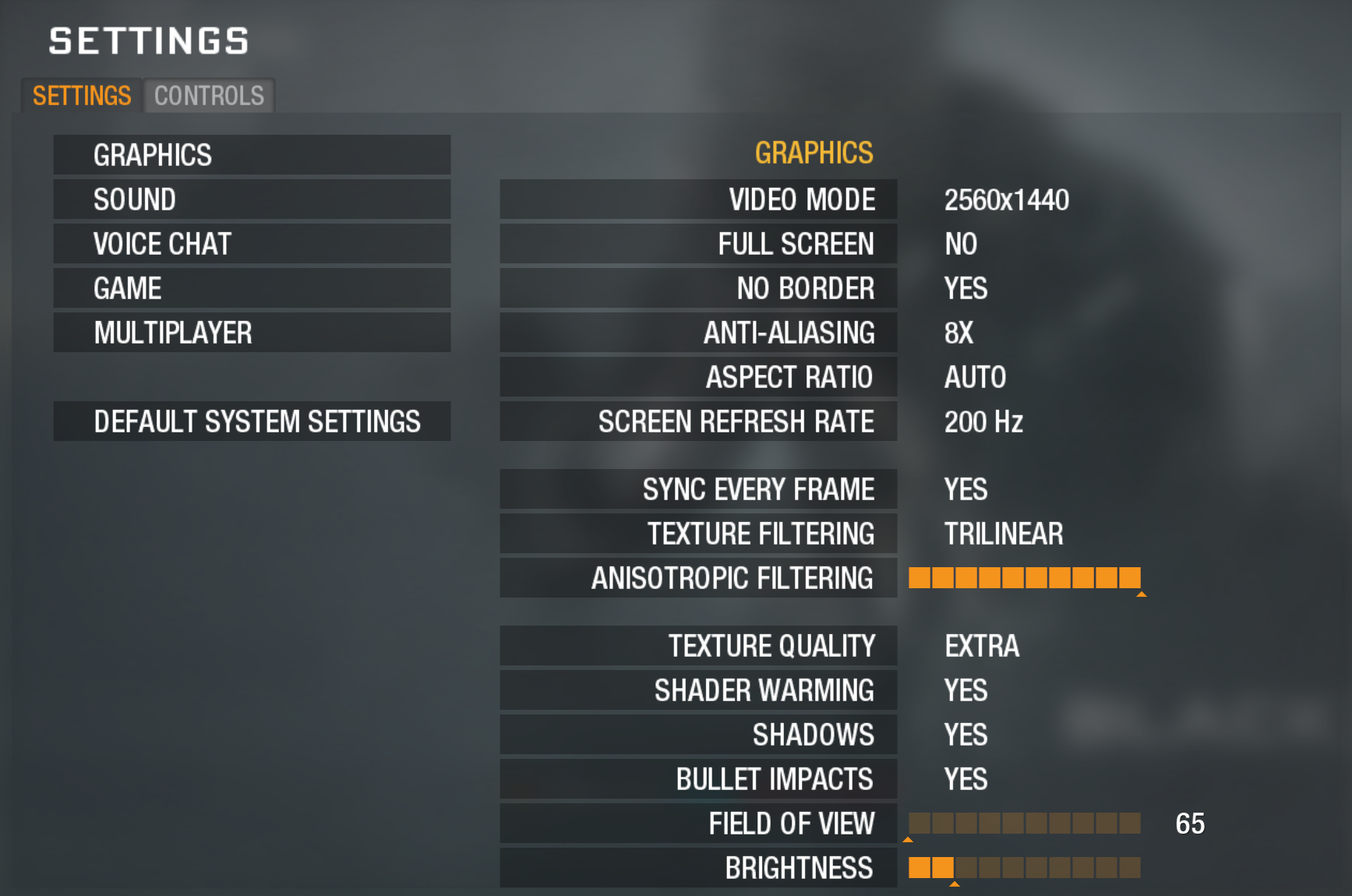
Black Ops can be optimized for modern systems. Here are a few critical tweaks to get the game looking sharp and running fast.
Graphics
| Setting | Recommended |
|---|---|
| Video mode (resolution) | Highest your display supports (e.g. 2560×1440 for 2K) |
| Aspect ratio | Auto |
| Screen refresh rate | Highest (e.g. 144 / 240) |
| No border (borderless fullscreen window) | Yes |
| Sync every frame (V-Sync) | Yes |
| Anti-Aliasing | 8× |
| Anisotropic filtering | 16 (max) |
| Texture filtering | Trilinear |
| Texture quality | Extra |
| Shader warming | Yes |
| Shadows | Yes |
| Bullet impacts | Yes |
| Field of view | 65 (see below for higher FOV scale) |
| Brightness | Not too high |
Field of view (FOV)
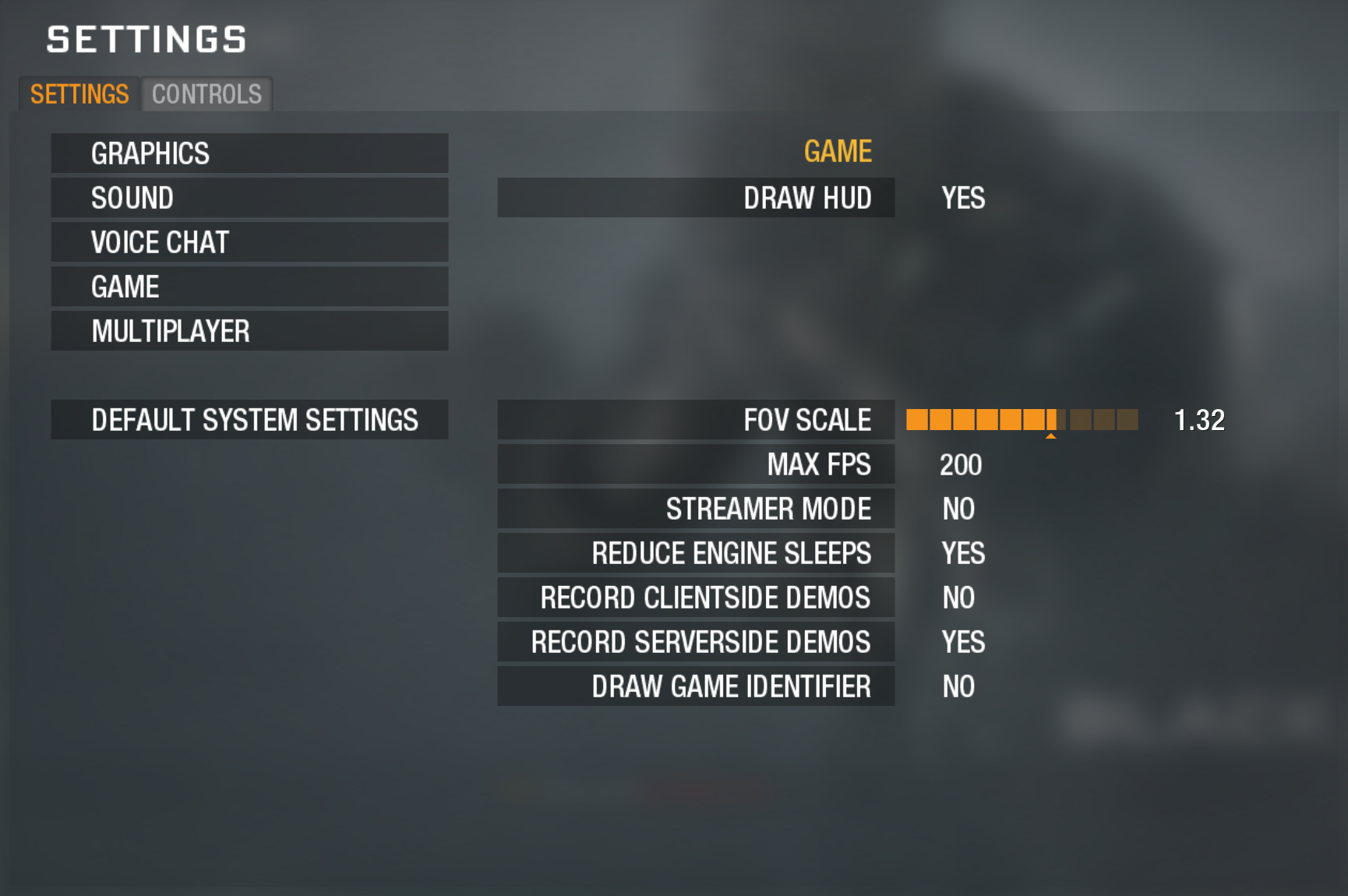
The in-game Field of view slider caps at 80, but Plutonium lets you go wider using FOV scale (Game tab) alongside Field of view (Graphics tab). To work out your total FOV, multiply cg_fov by cg_fovScale; any scale above 1 pushes past 80. Set both from the in-game Options menu, or directly via console (cg_fov, cg_fovScale).
FOV scale also affects your ADS sensitivity. Examples totalling 90 FOV:
cg_fov 90+cg_fovScale 1: only hipfire widens, so ADS still feels slower.cg_fov 40+cg_fovScale 2.25: ADS FOV matches hipfire, so sensitivity never changes.cg_fov 70+cg_fovScale 1.3: ADS zooms in slightly; sensitivity faster than vanilla.
Game
| Setting | Recommended |
|---|---|
| Draw HUD | Yes |
| FOV scale | (see above) |
| Max FPS | Highest (e.g. 144 / 240) |
| Reduce engine sleeps | Yes |
Controller
- Controls → Gamepad → Yes to enable controller support.
- If you are using a PlayStation controller, use DS4Windows to present it as an Xbox controller.
How to open the console
Press the ~ key (tilde / grave, top-left under Esc) to open the Plutonium console. If nothing happens, enable the console in the Plutonium launcher/in-game options first, then press ~ again. Type a command and hit Enter. You’ll need it for the Sprint/ADS improvement below.
Mouse & Keyboard: Sprint/ADS improvement
Black Ops 1 has a long-standing quirk: you can’t aim down sights while the Sprint key (Shift) is held. Normally you have to fully release Shift before you can aim, which loses gunfights. One console command fixes it.
Open the console (~) and paste:
bind MOUSE2 "+speed_throw; -breath_sprint; -sprint"Now you can ADS without releasing Sprint. What it does: aiming (+speed_throw) also clears the sprint input (-breath_sprint) so the engine stops blocking your aim. The trailing -sprint is a required no-op: it absorbs the key event so the sprint release actually fires.
The game sometimes strips custom MOUSE2 binds on restart. If ADS goes dead, just re-paste the line.
Recommended console commands
An alternate way to apply your settings. Most of these have an in-game menu equivalent (Graphics / Game tabs), but a few have no menu entry at all. Open the console (~) and paste the block. seta both applies a setting and saves it, so you only paste once and it sticks across restarts.
seta com_maxfps          "144"     // frame cap (also Options -> Game -> Max FPS)
seta r_displayRefresh    "144 Hz"  // Match your monitors output Hz
seta cl_maxpackets       "100"     // stock 30; lowers input latency
seta com_reduceSleep     "1"       // Options -> Game -> Reduce engine sleeps
seta r_aaSamples         "8"       // anti-aliasing (8x)
seta r_texFilterAnisoMax "16"      // anisotropic filtering (max)
seta r_picmip            "0"       // texture quality: Extra
seta sm_enable           "1"       // shadows on
seta cg_fov              "65"      // base FOV (true FOV = cg_fov x cg_fovScale)
seta cg_fovScale         "1.30"    // 65 x 1.30 = ~85 total; also drives ADS sensitivity
seta gpad_enabled        "1"       // controller support
Or apply all of them at once. Paste this single line into the console and hit Enter:
seta com_maxfps 144;seta r_displayRefresh "144 Hz";seta cl_maxpackets 100;seta com_reduceSleep 1;seta r_aaSamples 8;seta r_texFilterAnisoMax 16;seta r_picmip 0;seta sm_enable 1;seta cg_fov 65;seta cg_fovScale 1.30;seta gpad_enabled 1;vid_restart3. Find & join Gunfight
Black Ops Gunfight is a ranked server. Join through the in-game Server Browser.
- 1
Launch the game with either CB Launcher or directly through Plutonium.
- 2
Click PLAY and open the Server Browser.
- 3
On the Ranked tab, click refresh then find
Gunfight [gunfight.us]and join.
![The Server Browser with Gunfight [gunfight.us] in the Ranked tab](assets/getting-started/server-browser.png)
4. Troubleshooting
| Problem | Fix |
|---|---|
| Controller not detected | Enable Controls → Gamepad → Yes (PlayStation controllers need DS4Windows or Steam input). See the controller guide. |
| Can’t aim down sights while holding Sprint | Paste the ADS bind from the Sprint/ADS improvement section. |
| ADS stopped working after a restart | Re-paste the ADS bind. |
| FOV looks weird or ADS sensitivity feels wrong | See the Field of view section. |
| Game doesn’t feel smooth or FPS is low | Use full-screen with the recommended settings. |
| Game won’t open | In the CB Servers Launcher, open Black Ops → SETUP to re-point or re-download your copy, then click VERIFY. |
| Gunfight isn’t in the server list | Reset all filters, view the Ranked tab, and click Refresh to find Gunfight [gunfight.us]. Check the live status page to confirm the server is up. |
| Error connecting to the server | Make sure your Plutonium client is up to date, restart then rejoin. |
| Settings & Rank reset to defaults after joining Gunfight | Normal on the very first join. Settings & Rank are saved per mod, not per game. Back out to the main menu (the mod stays loaded), apply the recommended settings, and rejoin. One-time setup; they stick from then on. You’ll rank up fast. |
Made by KL9 · Discord · GitHub
Trademarks used are owned by their respective owners.
This mod is not endorsed by or affiliated with the copyright holders of the base game in any form.